---
title: AI Assistant
description: Turn an idea into a video story with Spokn's AI Assistant. Click Create with AI to get prompts, ideas, and angles for onboarding, training, and comms.
---
[Skip to content](https://go.getspokn.com/ai-assistant#main-content)
[](https://go.getspokn.com/?hsLang=en)
Open main navigation
Close main navigation
- [Sign in](https://app.getspokn.com/login)
[Sign in](https://app.getspokn.com/login)
Hi, what can we help you with?
- There are no suggestions because the search field is empty.
1. [Spokn Help Center](https://go.getspokn.com/?hsLang=en)
2. [AI-Powered Enhancements](https://go.getspokn.com/ai-powered-enhancements?hsLang=en)
# AI Assistant
Spokn’s AI Assistant helps you turn an idea into a clear starting point for your video.
Use it to brainstorm content, generate prompts, and explore different directions—so you can move from a blank page to a strong concept in minutes. The AI Assistant is designed to support the earliest stage of video creation, when you’re shaping what you want to say.
---
#### What the AI Assistant can help with
The AI Assistant helps you quickly build a foundation for your video by:
- generating video ideas based on your topic or goal
- creating prompts to guide contributors or your own script
- suggesting different angles or approaches
- helping you get unstuck when you’re not sure how to begin
It’s especially useful when you have a rough idea but need help turning it into something more structured and actionable.
---
#### How to use the AI Assistant
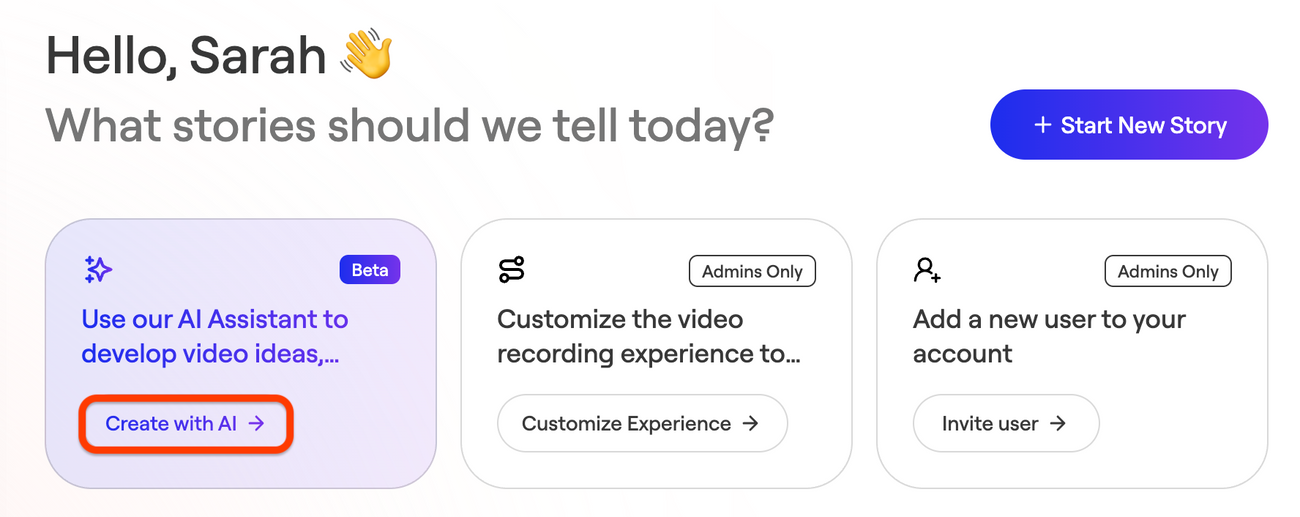
1. From your Spokn home screen, click **Create with AI**
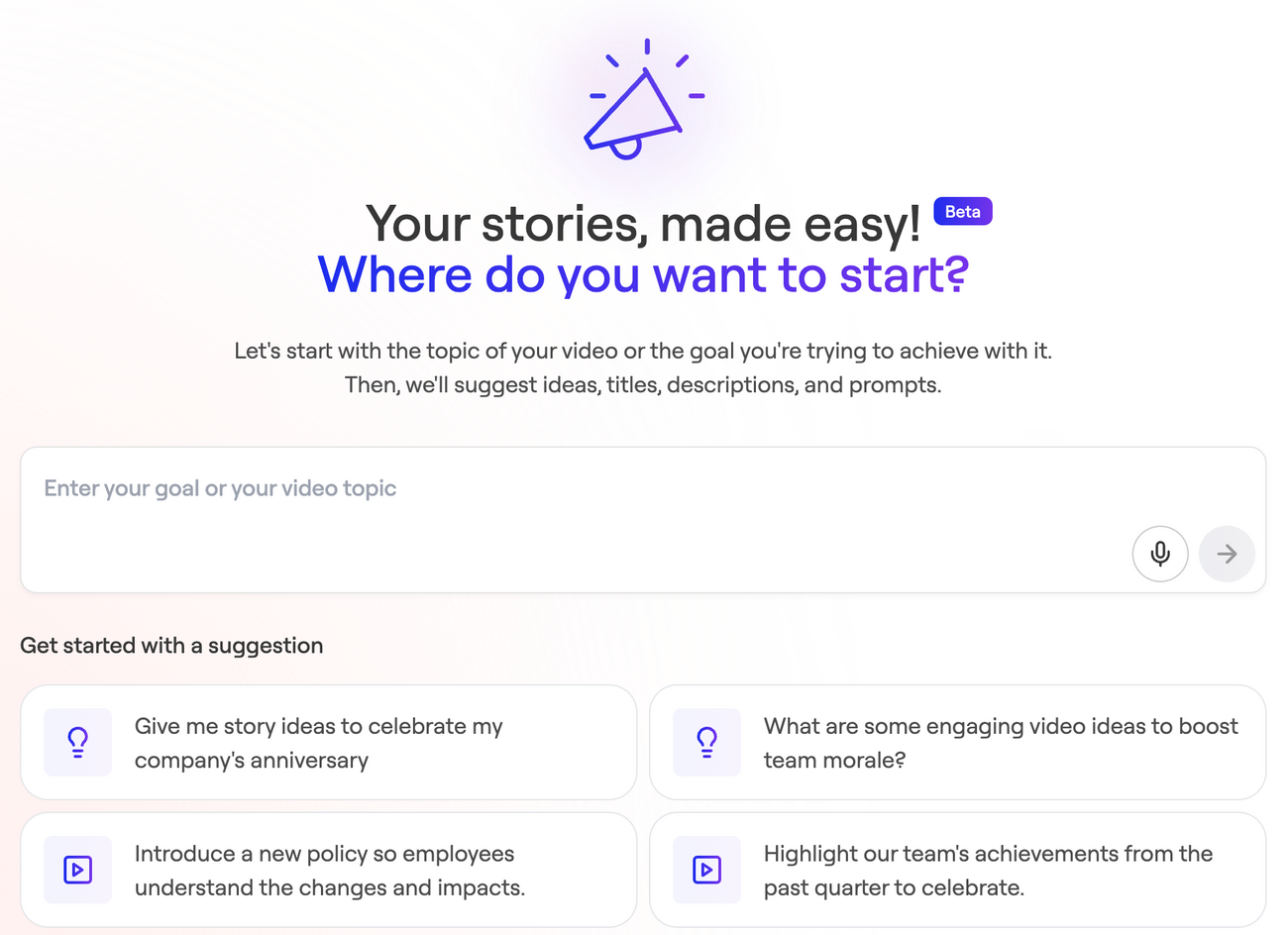
2. Enter your topic, goal, or the type of video you want to create
3. Review the ideas and prompts generated for you
4. Select the direction that best fits your message and continue building your Story
---
#### When to use it
The AI Assistant is most helpful when you:
- are starting a new video and need direction
- want inspiration for a communication or campaign
- need help writing prompts for contributors
- are creating content for onboarding, training, or internal communications
---
#### Examples
You might use the AI Assistant to help create:
- a company update or announcement
- an onboarding or training video
- a recognition or celebration story
- an employee engagement campaign
---
#### Tips for better results
The more specific your input, the stronger your suggestions will be.
Instead of:
`training video`
Try:
`Create a short onboarding video for new managers about how to run effective 1:1s`
Adding context like your audience, goal, or tone will help the AI generate more relevant ideas.
---
#### What happens next
Once you choose a suggestion or prompt, you can use it as the foundation for your Story — editing, refining, and building on it inside Spokn.
---
#### A note about AI-generated content
The AI Assistant is designed to help you get started quickly. Its suggestions are a starting point—you should review and refine them to match your company’s voice, goals, and internal context
- [Admin Setup](https://go.getspokn.com/admin-setup?hsLang=en)
- [Spokn SSO and IT Configuration](https://go.getspokn.com/spokn-sso-and-it-configuration?hsLang=en)
- [Setting Up a Video Story](https://go.getspokn.com/setting-up-a-video-story?hsLang=en)
- [Recording](https://go.getspokn.com/recording?hsLang=en)
- [Recording Best Practices](https://go.getspokn.com/recording-best-practices?hsLang=en)
- [Editing Clips](https://go.getspokn.com/editing-clips?hsLang=en)
- [AI-Powered Enhancements](https://go.getspokn.com/ai-powered-enhancements?hsLang=en)
- [Branding & Customization](https://go.getspokn.com/branding-customization?hsLang=en)
- [Sharing Your Videos](https://go.getspokn.com/sharing-your-videos?hsLang=en)
- [FAQs](https://go.getspokn.com/faqs?hsLang=en)
[](https://www.spokn.com/)
© 2025 Spokn. All Rights Reserved.