---
title: Auth0
description: "Connect Auth0 SSO to Spokn: create an app, enable the SAML2 Web App add-on, set the callback URL and audience, then add your IdP details in Spokn."
---
[Skip to content](https://go.getspokn.com/auth0#main-content)
[](https://go.getspokn.com/?hsLang=en)
Open main navigation
Close main navigation
- [Sign in](https://app.getspokn.com/login)
[Sign in](https://app.getspokn.com/login)
Hi, what can we help you with?
- There are no suggestions because the search field is empty.
1. [Spokn Help Center](https://go.getspokn.com/?hsLang=en)
2. [Spokn SSO and IT Configuration](https://go.getspokn.com/spokn-sso-and-it-configuration?hsLang=en)
# Auth0
1. Create a new Application for Spokn.
2. Enable SAML2 Web App Addon.
3. In Settings, set “Application Callback URL” with the URL [https://api.spokn.app/users/sso-web/callback](https://api.spokn.app/users/sso/callback)
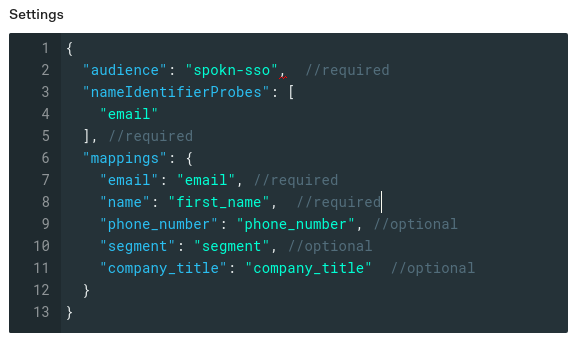
Add the mapping below:
---
Notes
1. The “Audience” field is a string field that you must specify for it to be used in the company settings in your Spokn portal.
2. You can add phone\_number, segment, and company\_title properties in the app metadata of each user where company\_title means employee’s title in the company and segment means the name of the segment in the Spokn portal for each user.
---
### Configuring Spokn (Final Step)
Please complete the following configuration to add SSO information to your company’s Spokn Account.
To update the portal with your SSO data:
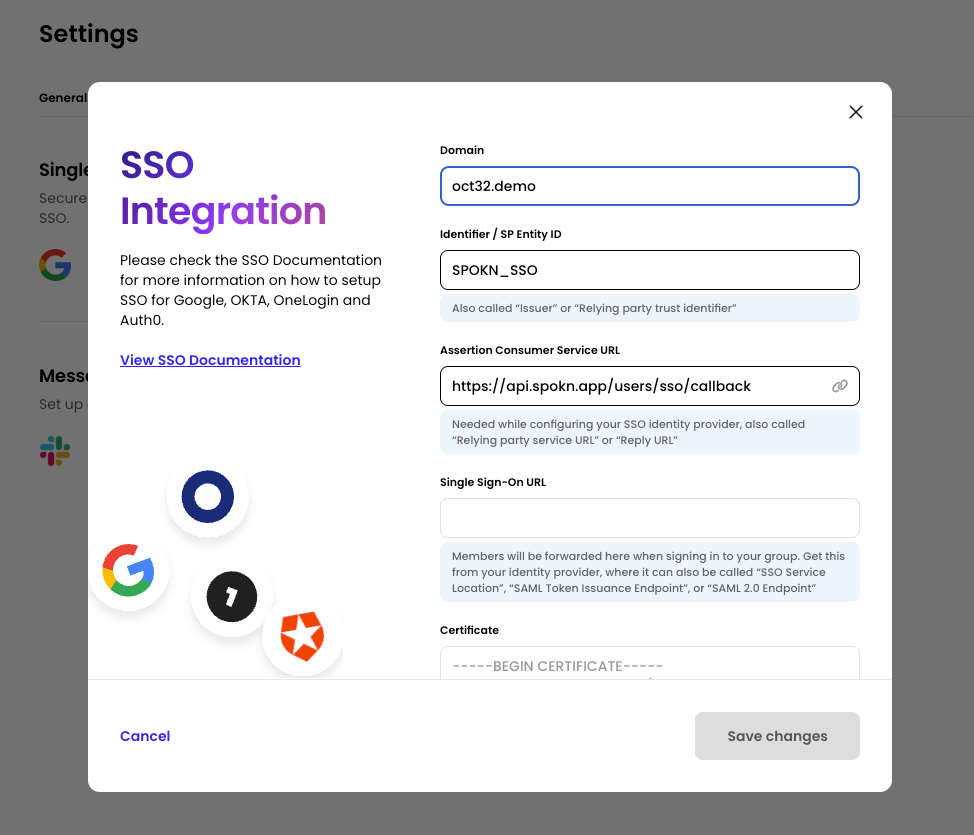
1. Visit the Spokn portal here: [Setting SSO](https://app.getspokn.com/settings/integrations)
2. In “Integration” Tab, Select “Connect” in the “Single Sign On” Section
3. In the Domain field, set your domain (ex. getspokn.com)
4. Copy the Identifier / SP Entity ID (SPOKN\_SSO) to yours SSO SP identifier (Also called: Audience Restriction/sp Entity ID)
5. Copy Assertion Consumer service URL ([https://api.spokn.app/users/sso-web/callback](https://api.spokn.app/users/sso/callback)) to your Reply URL (Also called: SAML Callback URL or relying party URL)
6. In Single sign-on URL, paste your SSO Entry URL (Also called: SSO service location or SSO Endpoint)
In Certificate, add the certificate from your IdP (no need to remove the begin/end part, it will be truncated automatically)
- [Admin Setup](https://go.getspokn.com/admin-setup?hsLang=en)
- [Spokn SSO and IT Configuration](https://go.getspokn.com/spokn-sso-and-it-configuration?hsLang=en)
- [Setting Up a Video Story](https://go.getspokn.com/setting-up-a-video-story?hsLang=en)
- [Recording](https://go.getspokn.com/recording?hsLang=en)
- [Recording Best Practices](https://go.getspokn.com/recording-best-practices?hsLang=en)
- [Editing Clips](https://go.getspokn.com/editing-clips?hsLang=en)
- [AI-Powered Enhancements](https://go.getspokn.com/ai-powered-enhancements?hsLang=en)
- [Branding & Customization](https://go.getspokn.com/branding-customization?hsLang=en)
- [Sharing Your Videos](https://go.getspokn.com/sharing-your-videos?hsLang=en)
- [FAQs](https://go.getspokn.com/faqs?hsLang=en)
[](https://www.spokn.com/)
© 2025 Spokn. All Rights Reserved.