---
title: How to Add Slides (Dividers Between Clips)
description: Add text slides between clips in your Spokn video to introduce sections or questions. Customize the background, text color, font size, and animation.
---
[Skip to content](https://go.getspokn.com/how-to-add-slides-dividers-between-clips#main-content)
[](https://go.getspokn.com/?hsLang=en)
Open main navigation
Close main navigation
- [Sign in](https://app.getspokn.com/login)
[Sign in](https://app.getspokn.com/login)
Hi, what can we help you with?
- There are no suggestions because the search field is empty.
1. [Spokn Help Center](https://go.getspokn.com/?hsLang=en)
2. [Branding & Customization](https://go.getspokn.com/branding-customization?hsLang=en)
# How to Add Slides (Dividers Between Clips)
You can split your video story into sections by adding slides between clips. These function as dividers, and they're a great way to introduce sections, highlight themes, or transition to new topics.
You can also use a slide to 'tee up' the content in the following video clip in Q&A - style videos, writing a question on a slide that is answered in the clip that follows it.
---
#### Add a Slide
1. Open your story.
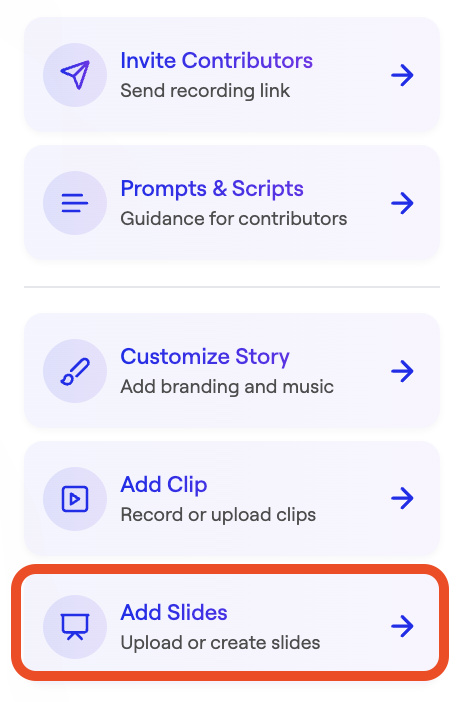
2. Click **Add Slides**.
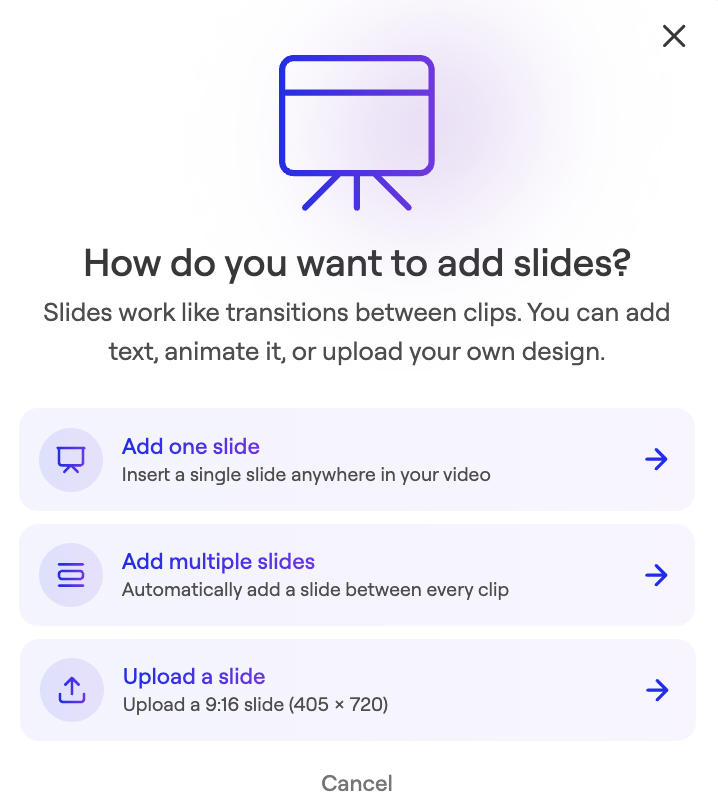
3. Choose if you want to add one or multiple slides.
4. Click **Edit text**.
5. Enter Text or click Format Slide to edit design.
6. 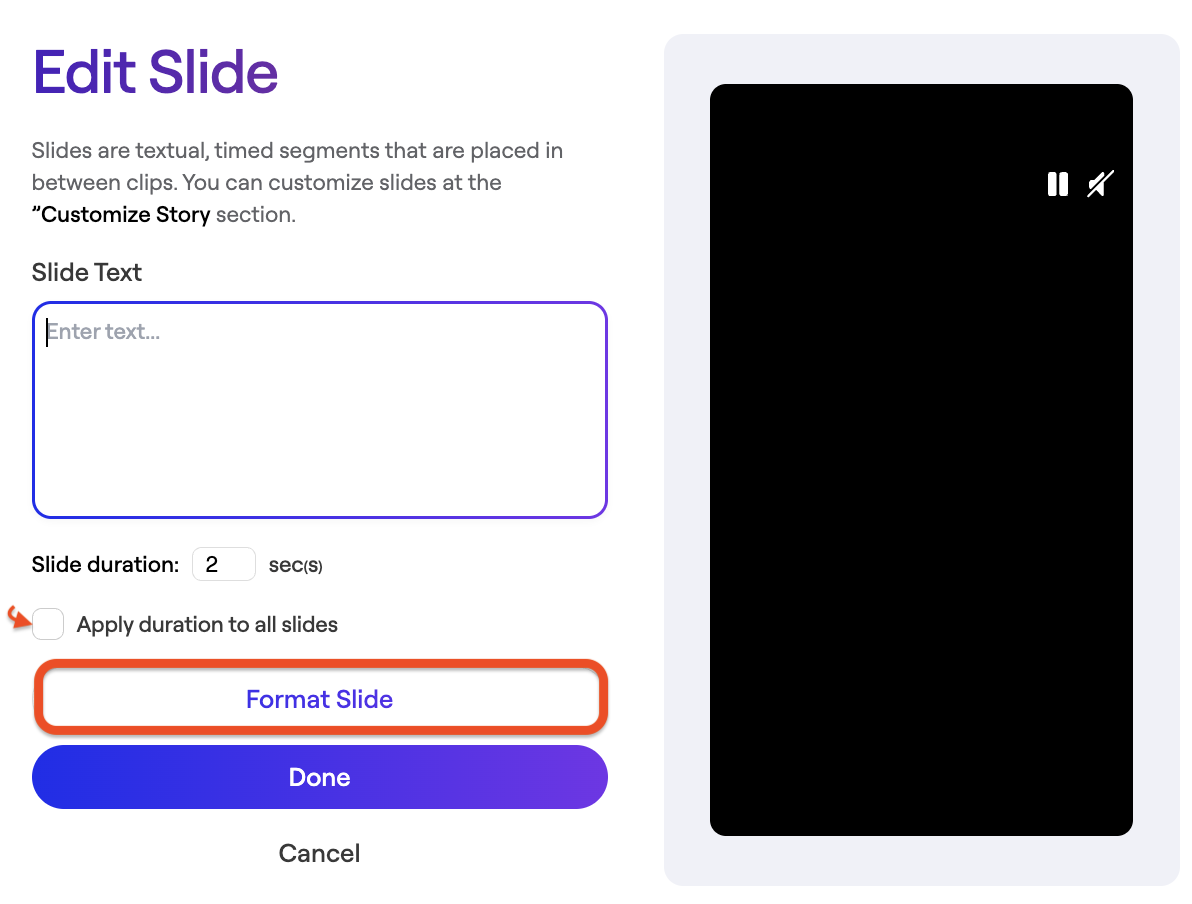Edit design
You can change the slide background, text color, font size, and text animation:
7. Save Changes.
- [Admin Setup](https://go.getspokn.com/admin-setup?hsLang=en)
- [Spokn SSO and IT Configuration](https://go.getspokn.com/spokn-sso-and-it-configuration?hsLang=en)
- [Setting Up a Video Story](https://go.getspokn.com/setting-up-a-video-story?hsLang=en)
- [Recording](https://go.getspokn.com/recording?hsLang=en)
- [Recording Best Practices](https://go.getspokn.com/recording-best-practices?hsLang=en)
- [Editing Clips](https://go.getspokn.com/editing-clips?hsLang=en)
- [AI-Powered Enhancements](https://go.getspokn.com/ai-powered-enhancements?hsLang=en)
- [Branding & Customization](https://go.getspokn.com/branding-customization?hsLang=en)
- [Sharing Your Videos](https://go.getspokn.com/sharing-your-videos?hsLang=en)
- [FAQs](https://go.getspokn.com/faqs?hsLang=en)
[](https://www.spokn.com/)
© 2025 Spokn. All Rights Reserved.