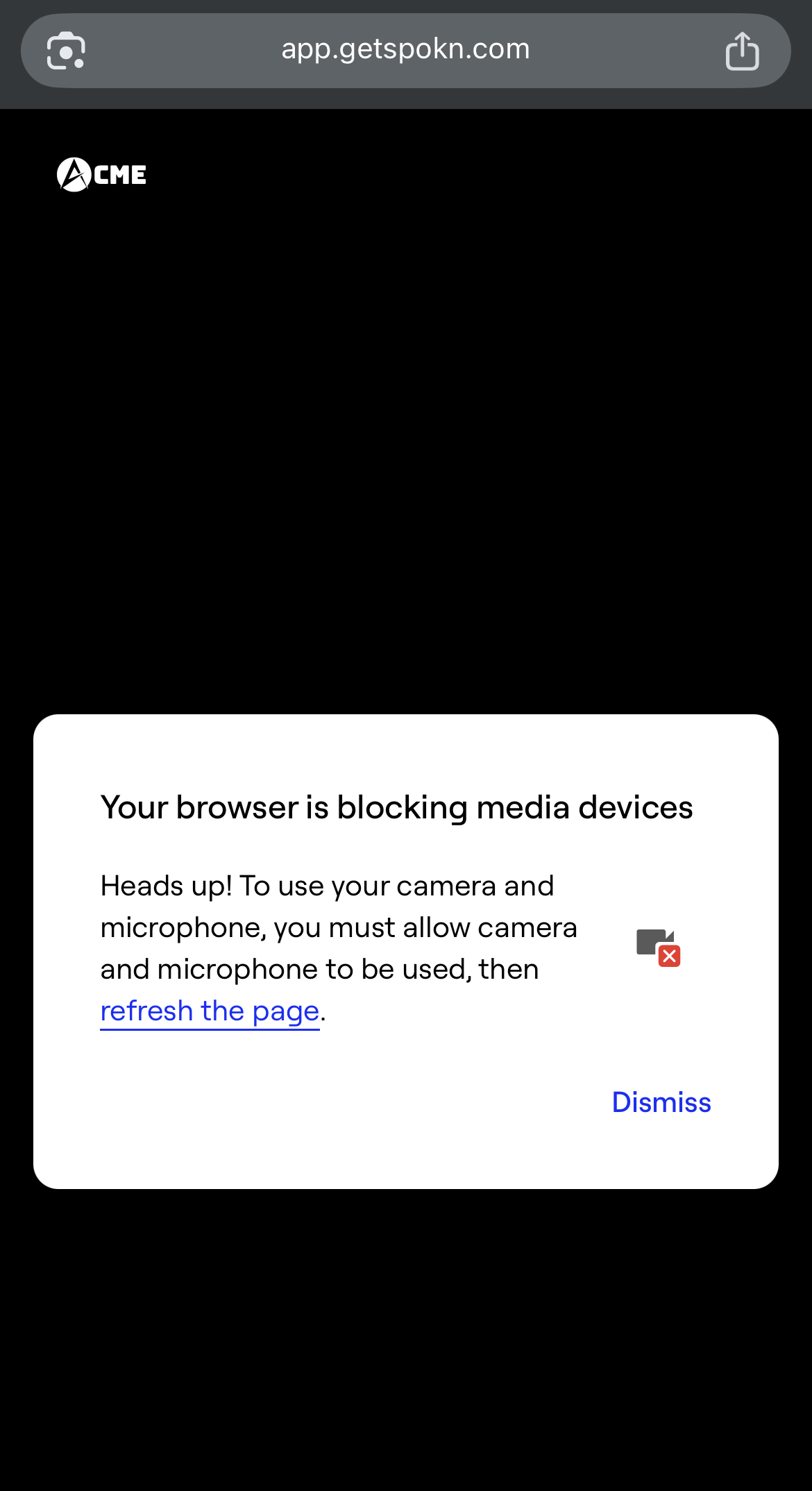
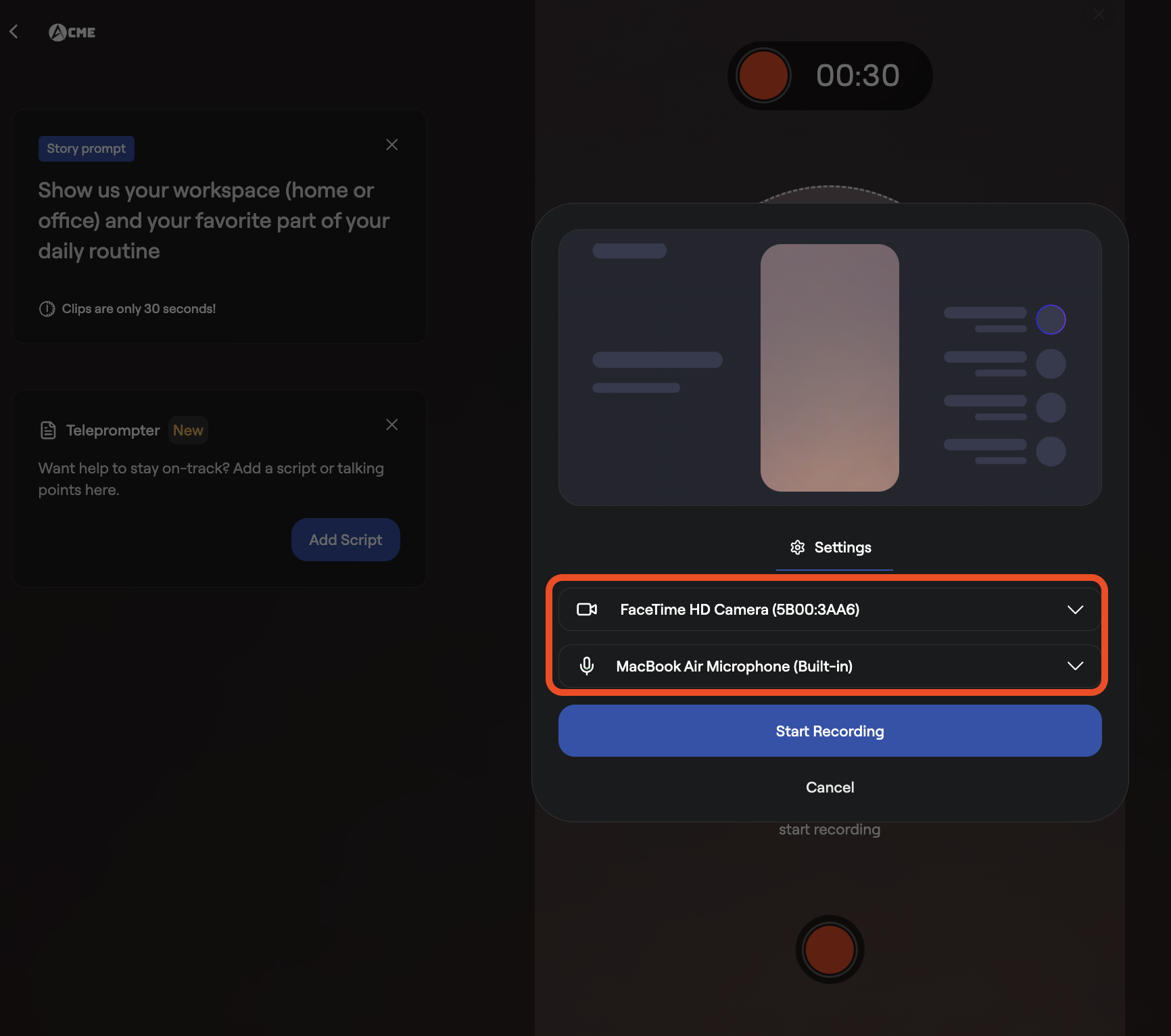
If this is your first time recording in Spokn, your browser or phone will ask for permission to use your camera and microphone.
On Desktop (Chrome, Edge, Safari)
- Click the recording link.
- When prompted, click Allow for:
-
- Camera access
- Microphone access
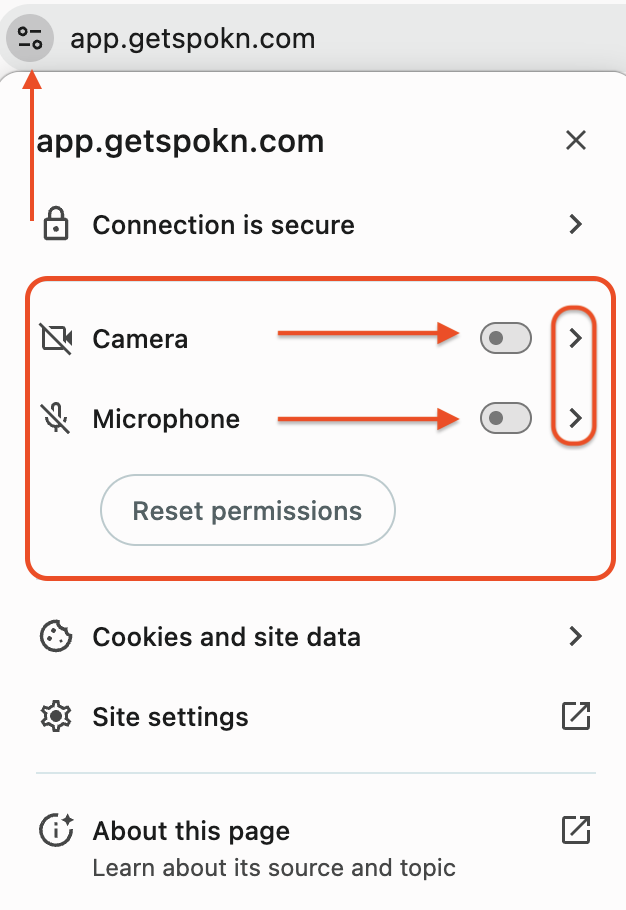
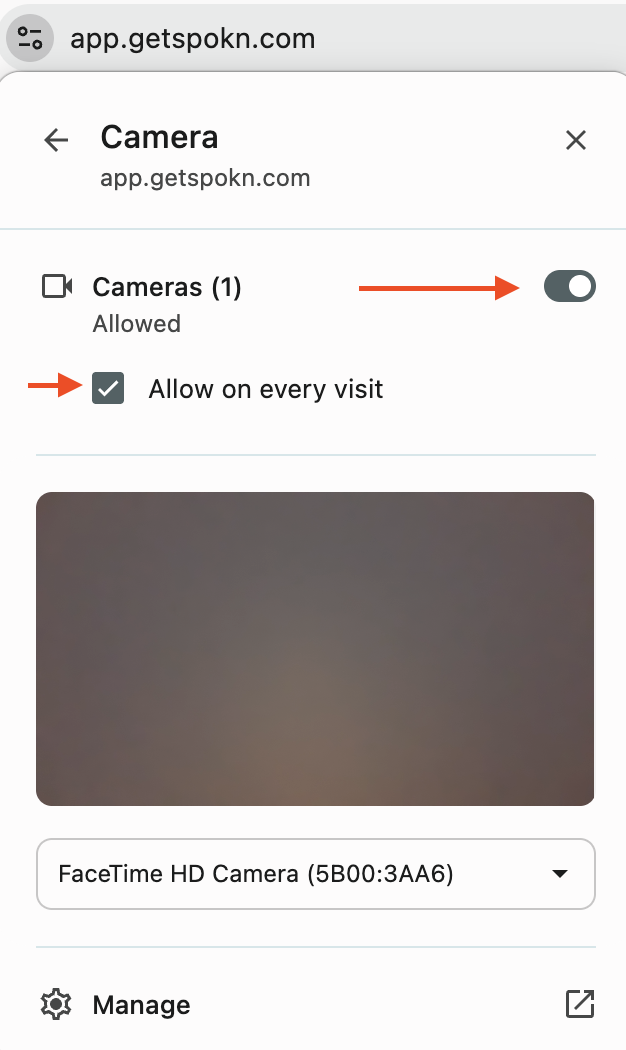
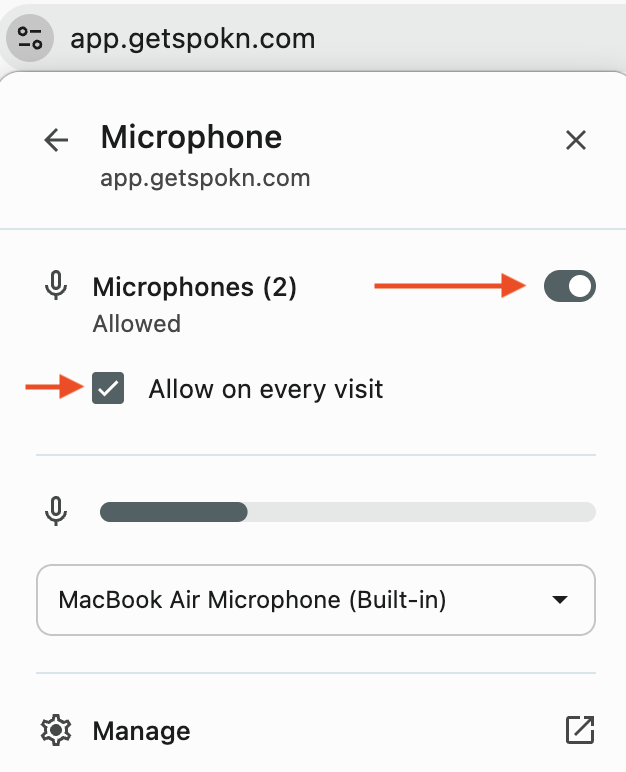
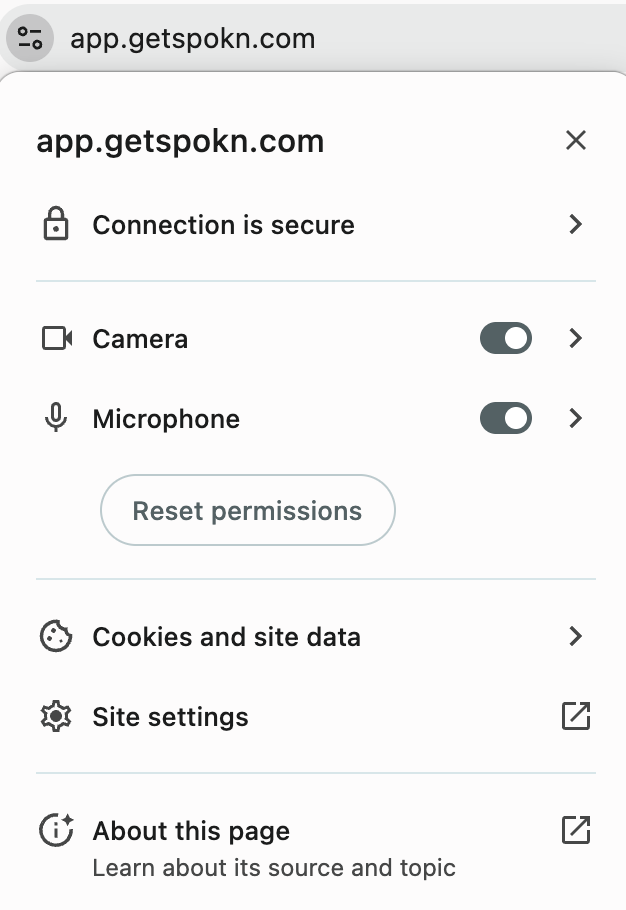
If you accidentally click “Block”:
- Click the camera icon in your browser’s address bar
- Change permissions to Allow
- Refresh the page
On Mobile
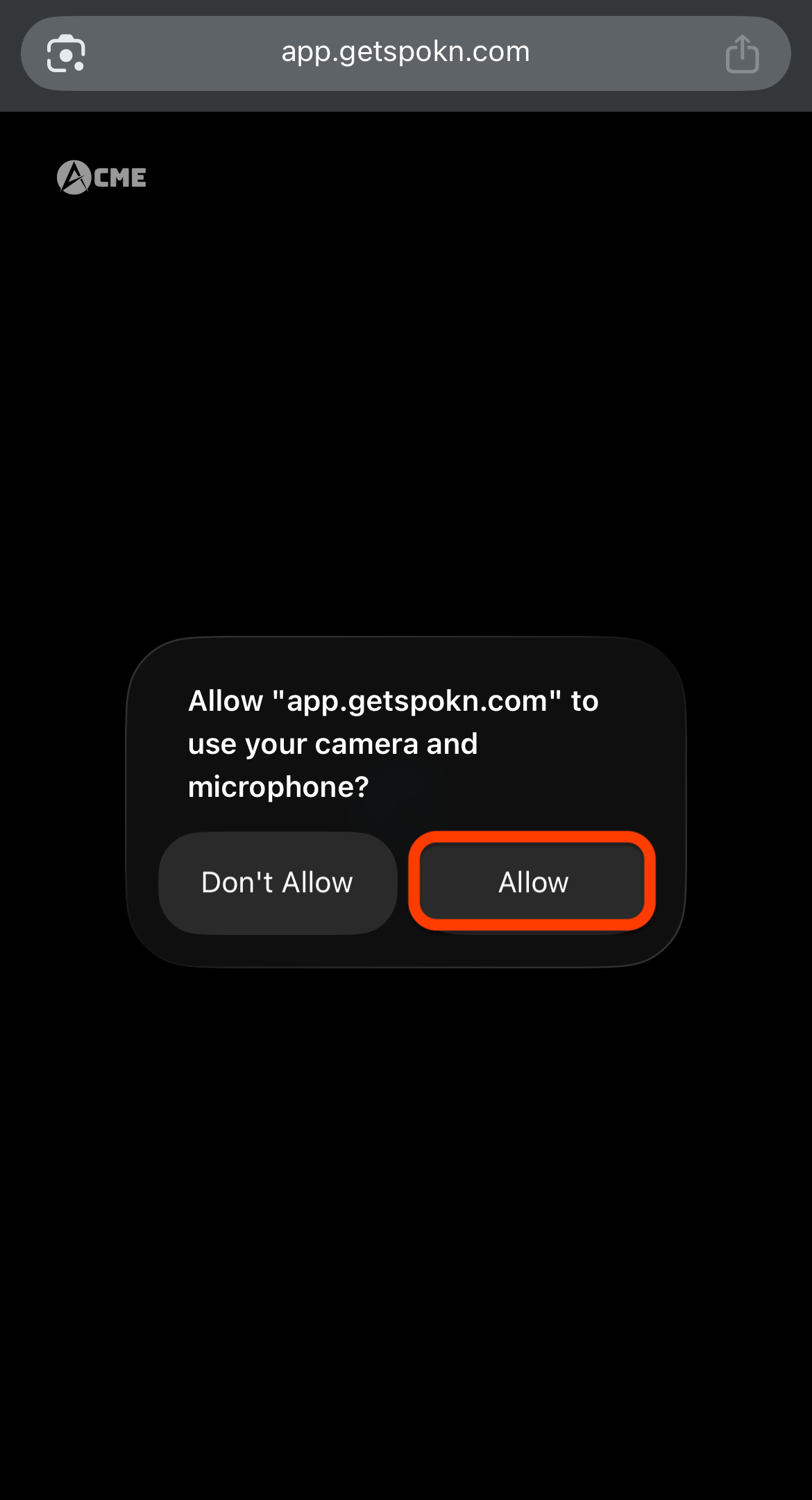
- Open the link in your browser.
- When prompted, tap Allow for camera and microphone access.
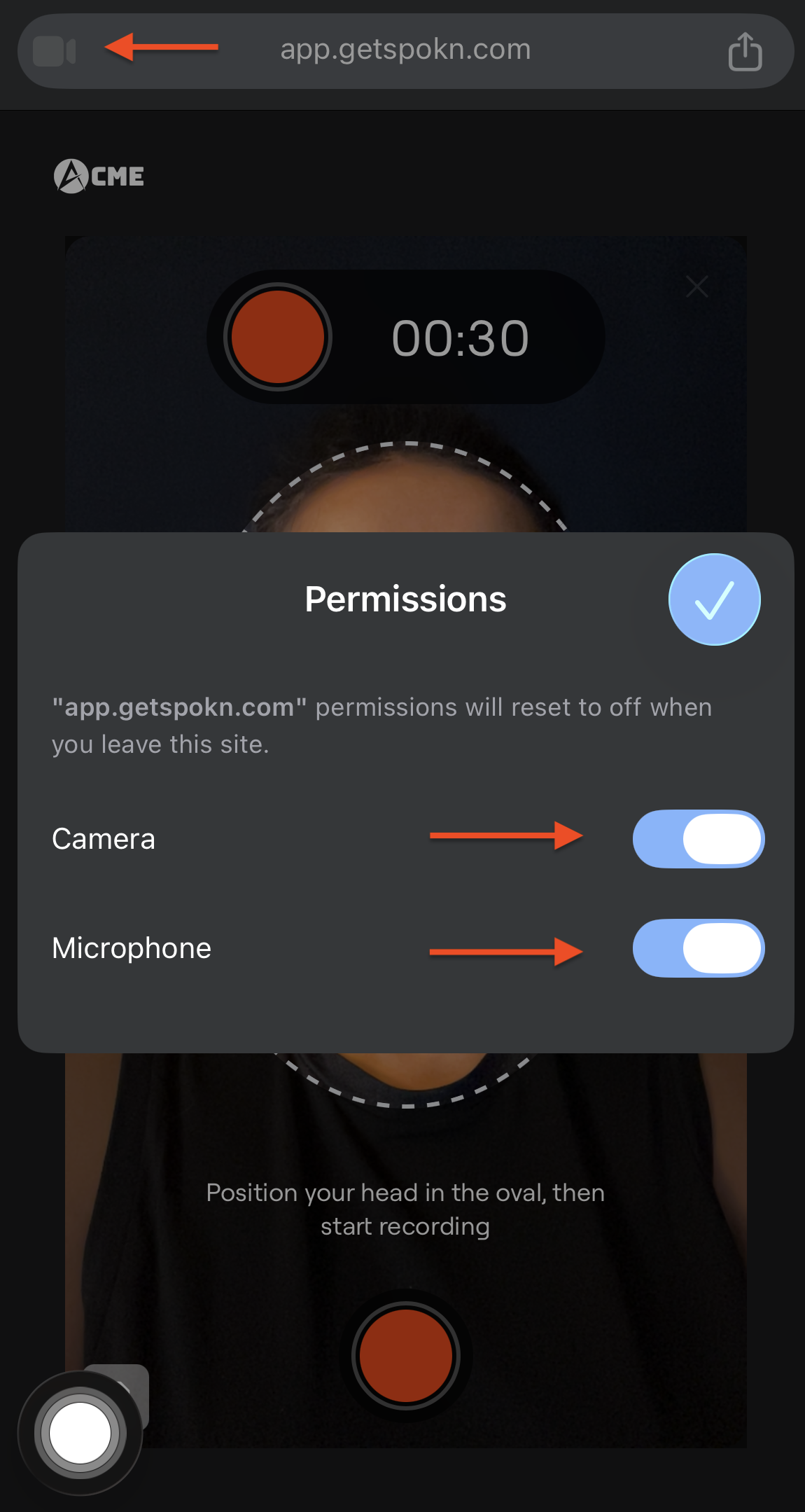
Note: If you see the following message, it means your browser doesn't have Camera and/or Microphone access, please enable them in your phone's setting first then refresh the page.