---
title: Recording a Vertical Video from Your Desktop
description: Record a vertical video clip from your computer with a Spokn link, no app needed. Pick your camera and mic, use the teleprompter, then trim and submit.
---
[Skip to content](https://go.getspokn.com/recording-a-vertical-video-from-your-desktop#main-content)
[](https://go.getspokn.com/?hsLang=en)
Open main navigation
Close main navigation
- [Sign in](https://app.getspokn.com/login)
[Sign in](https://app.getspokn.com/login)
Hi, what can we help you with?
- There are no suggestions because the search field is empty.
1. [Spokn Help Center](https://go.getspokn.com/?hsLang=en)
2. [Recording](https://go.getspokn.com/recording?hsLang=en)
# Recording a Vertical Video from Your Desktop
### Overview
If someone sends you a Spokn recording link, they’re inviting you to contribute a short clip to a video story. **You do not need to download an app or create an account to record**. It takes just a few minutes and you can do it from your **desktop or mobile**.
This guide walks you through what to expect and how to record your clip.
---
#### Step 1: Open the Recording Link
Click the recording link you received.
Enter your work email and click **Continue**.
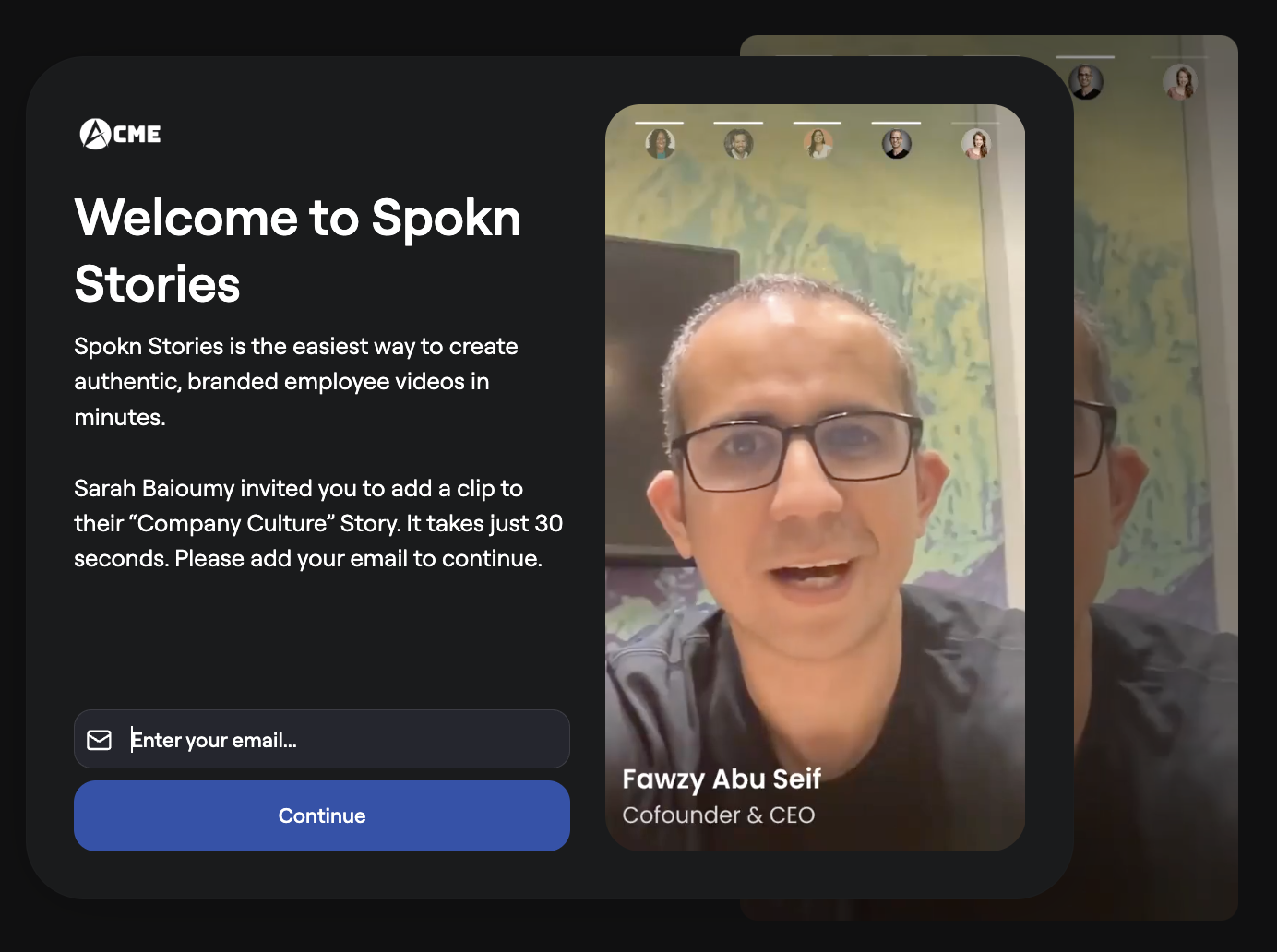
- After entering your email address, you'll see a short prompt explaining what to talk about.
- Click **Record a Video** to record.

You can also choose to **Upload a Video** if you already have a clip you wish to upload instead.
---
#### Step 2: Choose Your Camera and Microphone
The first time you record, you will see a popup prompting you to **allow Spokn to use your camera and microphone**. Follow the directions in [this article](https://support.getspokn.com/articles/703663-how-to-allow-your-camera-and-microphone) for help.

Before recording, you can:
- Select your camera
- Select your microphone

If you are using a laptop with built-in camera and mic, the default settings usually work well.
Click **Start Recording** when you’re ready.
---
#### Step 3: Record Your Video
You’ll see:
- A red start/stop button
- A countdown clock with your time limit per clip
- The prompt you're asked to respond to
- A guide showing where to position your face
- An optional teleprompter which may include a pre-assigned script

Tips:
- Look directly at the camera
- Keep your message concise
- Speak naturally
There is a time limit to help keep videos engaging. If time runs out, the recording will automatically stop.

---
#### Step 4: Use the Teleprompter (Optional)
If you’d like help staying on track, you can use the built-in teleprompter.

You can:
- Type notes or a full script

- Adjust teleprompter window size

- Adjust font size

- Adjust scroll speed

- Pause the teleprompter with your mic so when you pause, it pauses. This helps you avoid being left behind.

💡 If using this feature, remove any line breaks from your script before recording to ensure the teleprompter advances properly.
---
#### Step 5: Review and Edit
After recording, you can:
- Replay your clip
- Re-record as many times as you would like
- Trim the beginning or end
- Add a screenshot or image (if relevant)

If you’re happy with your clip, click **Done Editing**.
---
#### Step 6: Add Your Details and Submit
Before submitting, you’ll:
- Enter your name
- Enter your job title
- Agree to the video usage terms

Click **Add clip to story.**
Once submitted, your clip is sent to the story editor for review.
**Note:** Depending on your network speed and video length, upload may take a few minutes. You’ll see a confirmation message once your clip has been successfully added.
- [Admin Setup](https://go.getspokn.com/admin-setup?hsLang=en)
- [Spokn SSO and IT Configuration](https://go.getspokn.com/spokn-sso-and-it-configuration?hsLang=en)
- [Setting Up a Video Story](https://go.getspokn.com/setting-up-a-video-story?hsLang=en)
- [Recording](https://go.getspokn.com/recording?hsLang=en)
- [Recording Best Practices](https://go.getspokn.com/recording-best-practices?hsLang=en)
- [Editing Clips](https://go.getspokn.com/editing-clips?hsLang=en)
- [AI-Powered Enhancements](https://go.getspokn.com/ai-powered-enhancements?hsLang=en)
- [Branding & Customization](https://go.getspokn.com/branding-customization?hsLang=en)
- [Sharing Your Videos](https://go.getspokn.com/sharing-your-videos?hsLang=en)
- [FAQs](https://go.getspokn.com/faqs?hsLang=en)
[](https://www.spokn.com/)
© 2025 Spokn. All Rights Reserved.