---
title: Set Up a Video Story in Spokn
description: "Set up a Spokn video story: add a title, pick portrait or landscape, set clip time limits, write a strong prompt, and share the recording link."
---
[Skip to content](https://go.getspokn.com/set-up-a-video-story-in-spokn#main-content)
[](https://go.getspokn.com/?hsLang=en)
Open main navigation
Close main navigation
- [Sign in](https://app.getspokn.com/login)
[Sign in](https://app.getspokn.com/login)
Hi, what can we help you with?
- There are no suggestions because the search field is empty.
1. [Spokn Help Center](https://go.getspokn.com/?hsLang=en)
2. [Setting Up a Video Story](https://go.getspokn.com/setting-up-a-video-story?hsLang=en)
# Set Up a Video Story in Spokn
### Overview
A video story is a collection of clips from one or more people that are stitched together into a single video along with branding, captions, and music. You can make a story in minutes on Spokn without any video editing experience.
This guide walks through how to:
- Create a new story
- Add a title and
- Set a time limit for contributors
- Set the format (portrait or landscape)
- Craft a prompt for contributors to respond to
- Share you recording link
---
#### Step 1: Start a New Story
1. Log in to Spokn.
2. From your dashboard, click **Start Story**.

---
#### Step 2: Add Name and Description
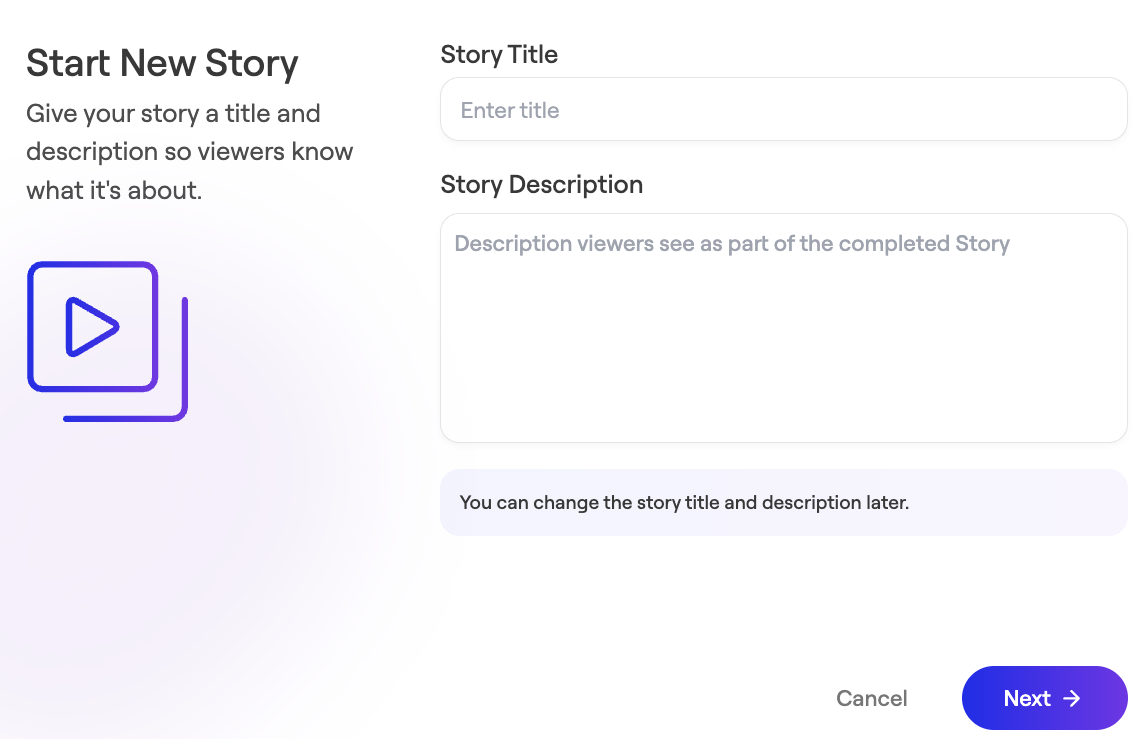
Enter Story Title and Story Description.
This will be visible in the final version of your video. You can always edit it later.
---
#### Step 3: Choose Video Format (Orientation)
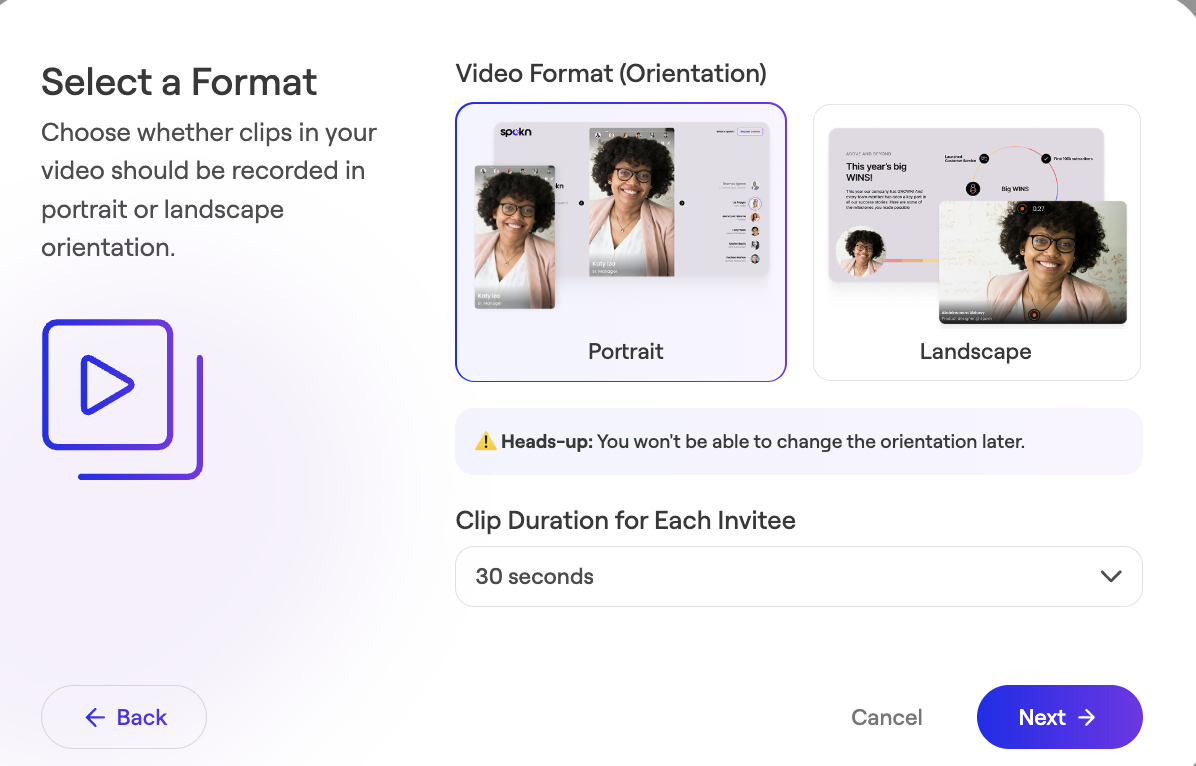
- **Portrait (9:16)** — ideal for capturing attention, storytelling, conveying authenticity and building trust
- **Landscape (16:9)** — ideal for screen-share presentations and software tutorials
---
#### Step 4: Set a Time Limit
Set a maximum clip length. This is the longest a contributor can record in a single clip.
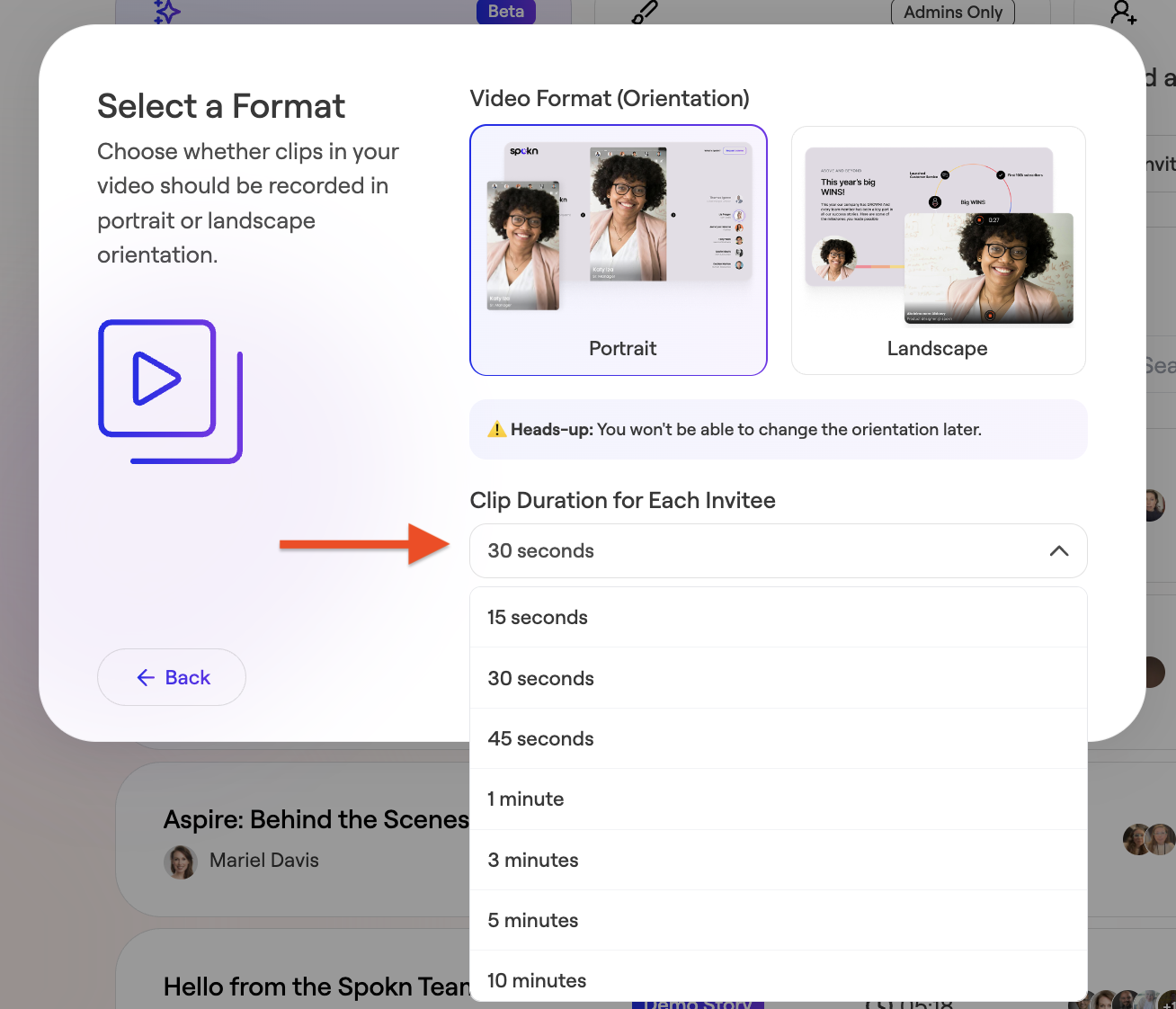
There’s no limit to how many clips a contributor can record, or how many clips can be included in a final video.
- 30 seconds is the recommended length for most vertical videos
- split longer messages into multiple 30-second clips
- screen-share videos typically benefit from 1+ minute time limits
💡 Tip: Shorter time limits:
- Increase viewer completion rates
- Increase contributors' willingness to record
- Encourage contributors to re-record for the best quality delivery
---
#### Step 5: Write the Recording Prompt
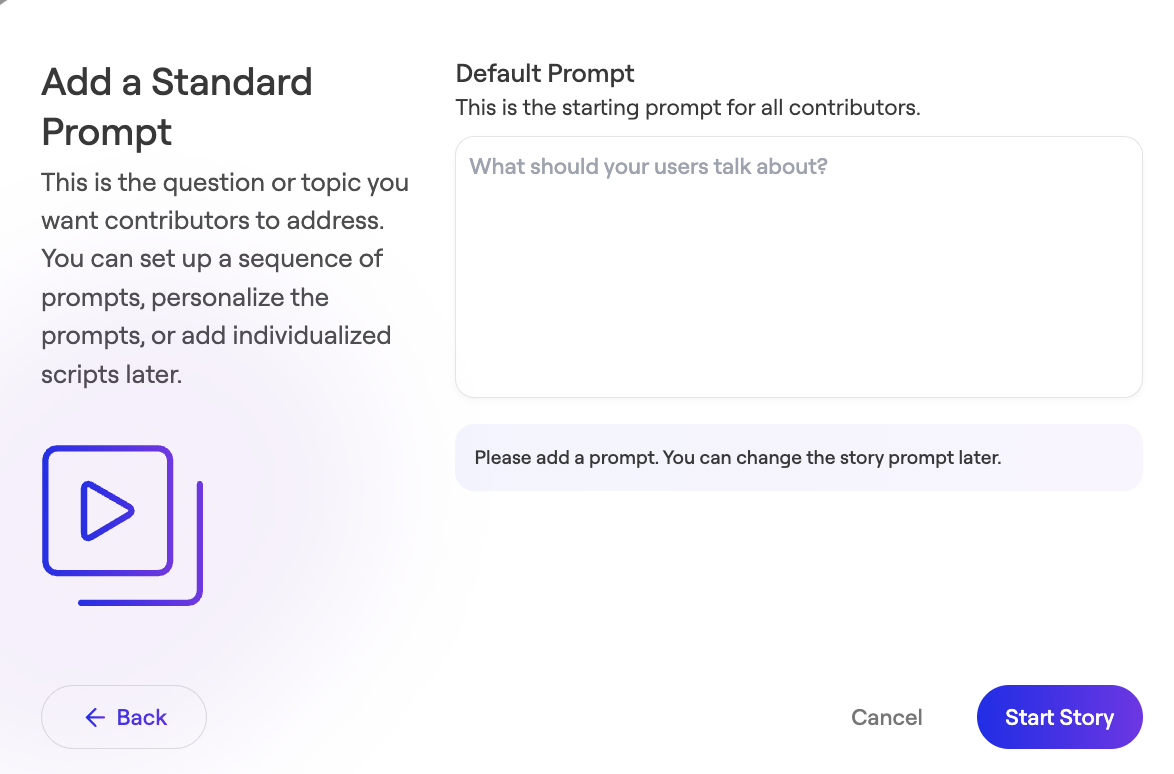
Your prompt is a set of instructions that guides contributors on what to say.
💡 Tips:
- Make questions very specific
- Keep instructions short
- Consider adding guidance on wording (e.g. "Start your clip with: "My favorite...")
**Example:**
Instead of:
"Share your experience in the mentoring program, what you got out of it, and anything else you’d like to add."
Use:
"What is one specific way that the mentoring program benefitted you? Start your clip with: “One thing I got out of the mentoring program is…”
---
#### Step 6: Share the Recording Link
1. Copy the recording link.
2. Share along with a personalized message via Slack, Teams, email, or your intranet.
3. You can also use Spokn to send recording invitation emails

Contributors do not need to download an app or log into Spokn to record.
---
#### Video Tutorial
[How to Use Spokn](https://app.getspokn.com/stories/public/15001?orientation=landscape)
- [Admin Setup](https://go.getspokn.com/admin-setup?hsLang=en)
- [Spokn SSO and IT Configuration](https://go.getspokn.com/spokn-sso-and-it-configuration?hsLang=en)
- [Setting Up a Video Story](https://go.getspokn.com/setting-up-a-video-story?hsLang=en)
- [Recording](https://go.getspokn.com/recording?hsLang=en)
- [Recording Best Practices](https://go.getspokn.com/recording-best-practices?hsLang=en)
- [Editing Clips](https://go.getspokn.com/editing-clips?hsLang=en)
- [AI-Powered Enhancements](https://go.getspokn.com/ai-powered-enhancements?hsLang=en)
- [Branding & Customization](https://go.getspokn.com/branding-customization?hsLang=en)
- [Sharing Your Videos](https://go.getspokn.com/sharing-your-videos?hsLang=en)
- [FAQs](https://go.getspokn.com/faqs?hsLang=en)
[](https://www.spokn.com/)
© 2025 Spokn. All Rights Reserved.